
Windows, Windows 10
Download and Activate Windows 10 Pro, Home ISO for Free (32 & 64 Bit Full Version)
Download Windows 10 from Official website
Step1: Visit the Windows 10 ISO Download Page for Media Creation Tool
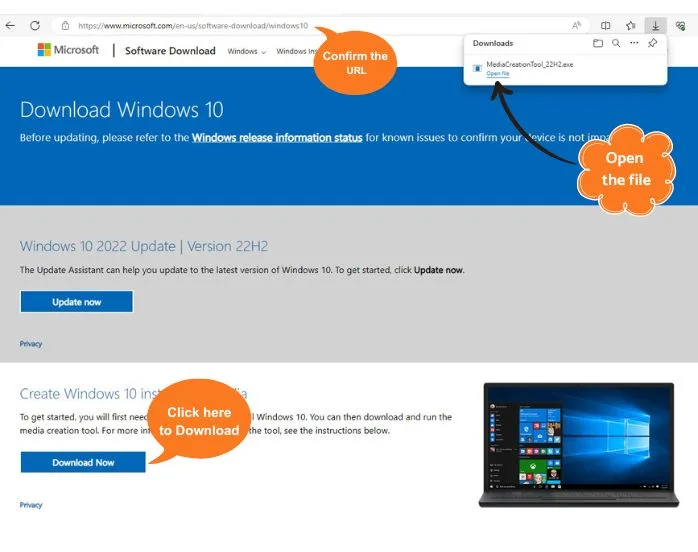
Step 2: Insert USB Flash Drive and Run the Downloaded File
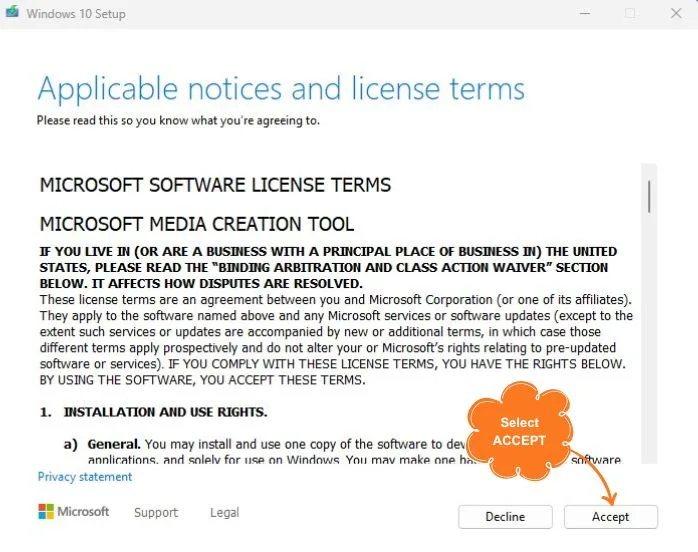
Insert the USB flash device into your PC and keep it connected until the process is complete. Open the downloaded file and click “Accept.”
Step 4: Choose Language and Windows 10 Version 32 or 64 bit
Select your preferred language and Windows 10 32 or 64 bit version from the dropdown menu.
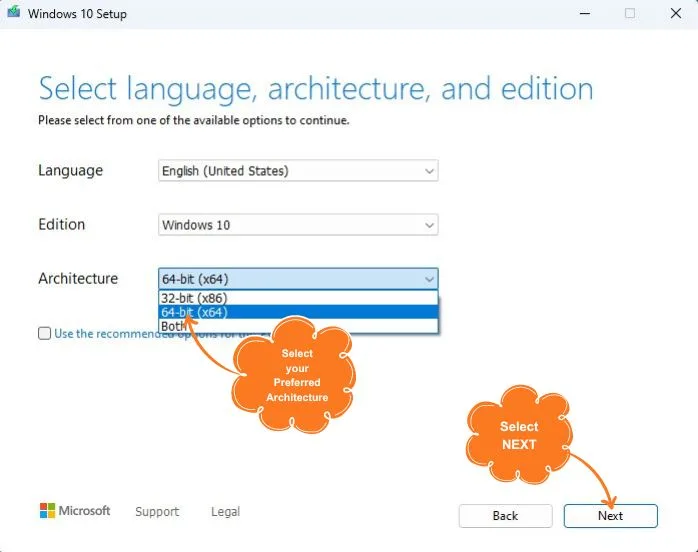
Note: You may also choose to download the Windows 10 ISO file, but this requires additional software to create a bootable USB.
Step 5: Select the USB Device
Choose the USB device connected to your PC and click “Next” to create a Windows 10 USB bootable device. This process duration may vary based on your network speed.
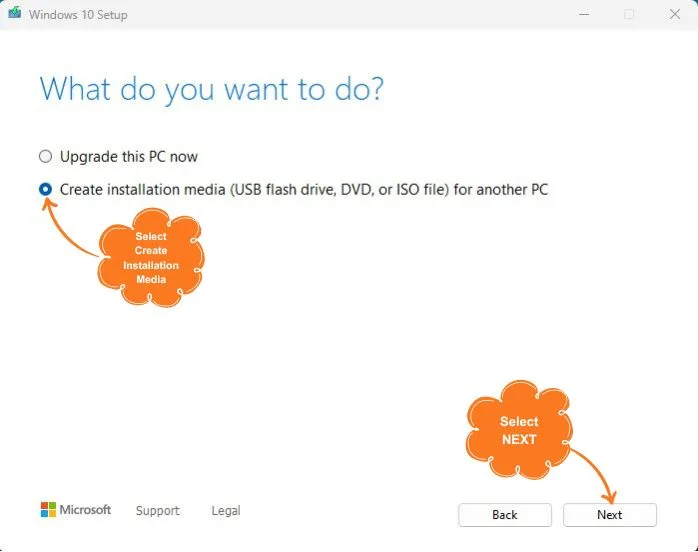
Congratulations! You have successfully created a bootable device for installing Windows 10 full version.
The above steps are performed to create a USB media device for installing Windows 10 full version. Proceed to the last Section to boot downloaded Windows 10.
Booting Windows 10
Step 1: Insert the Windows 10 from Bootable USB Storage.
Insert the Windows 10 bootable USB storage into your PC and restart it. During the boot-up process, press F12 or F2 (this button might be different with your PC, please check PC brand website) to access the boot menu.
Step 2: Select the Inserted USB Device
From the boot menu, select the inserted USB device to initiate the Windows 10 installation process.
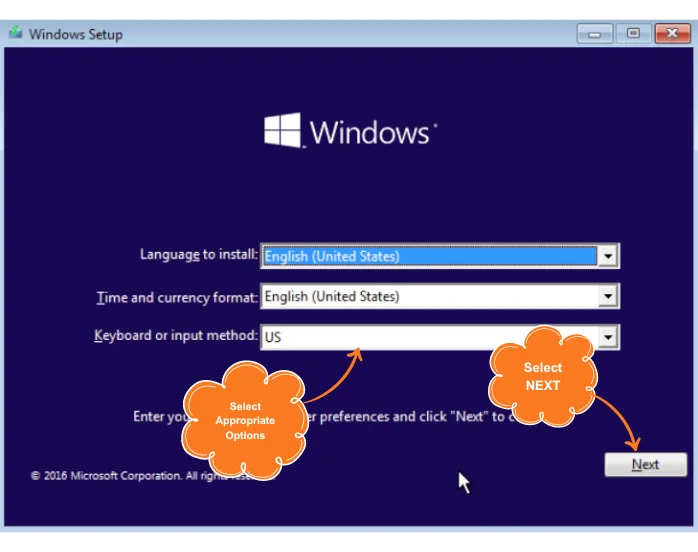
Step 3: Select Language and Proceed
Choose your preferred language and click “Next.”
In the meantime, you can get genuine Windows 10 activation keys here.
Select the preferred edition of Windows 10 (e.g., Windows 10 Pro, Windows 10 Home, Windows 10 Enterprise) and click “Next.”
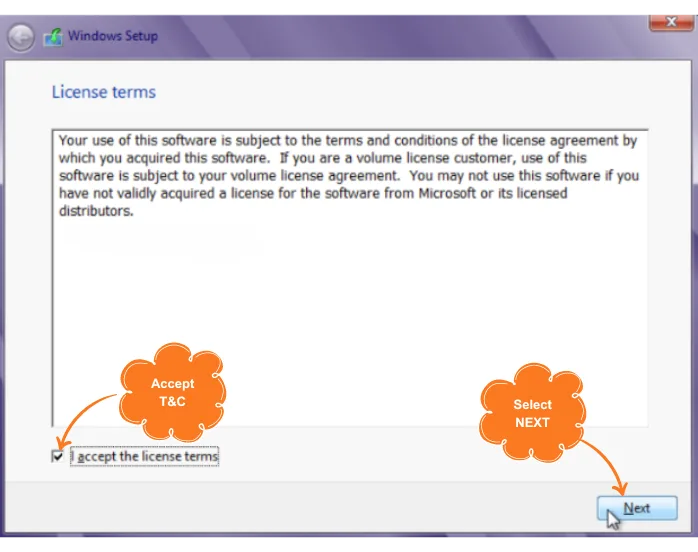
Read and accept all the terms and conditions, then click “Accept” and “Next.”
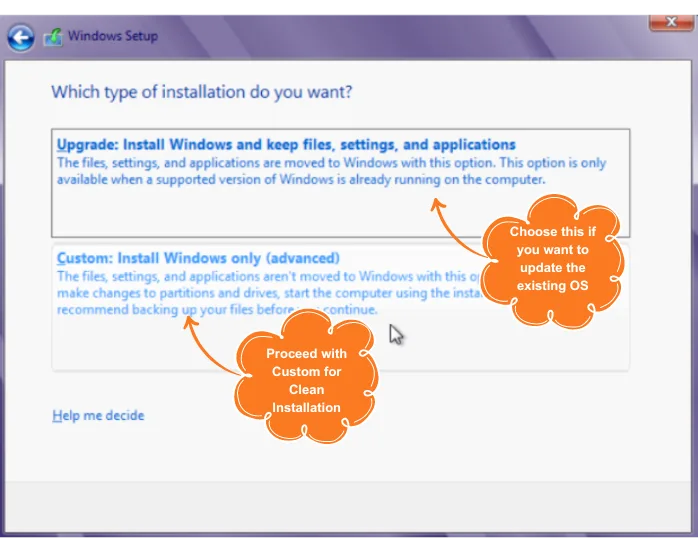
Step 4: Custom Installation
Select “Custom: Install Windows Only (Advanced)” as the installation type. Choose the partition where you want to install Windows 10 and click “Next.” The installation process will begin.
Note: If your PC doesn’t detect a hard drive during installation, you may need to load a driver. Refer to your PC manufacturer’s website for the appropriate driver.
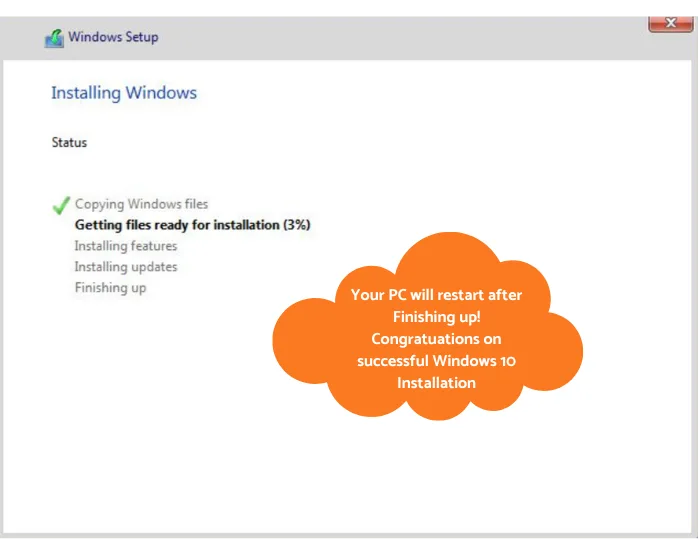
Once Windows 10 is installed, your PC will restart. Follow the prompts to complete the device setup.
Activate your Windows 10 Pro or Home with a license key purchased from Flash Fix India.
Steps to Activate your Windows 10 ISO
Step 1: Navigate to Settings
Go to the Settings of your computer or laptop.
Step 2: Select System
From the list, select the “System” option.
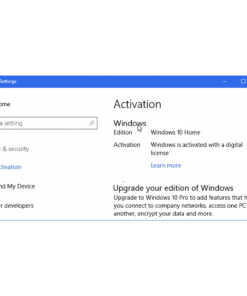
Step 3: Choose Activation
Select the “Activation” option on the screen.
Step 4: Activate or Change Product Key
Choose the “Activate” or “Change Product Key” option as required.
Step 5: Enter License Key
Enter the Windows 10 Pro or Home License key received in your email address.
Step 6: Activate Now
Click “Activate Now.” The activation process may take 20-30 seconds.
Your downloaded ISO of Windows 10 Pro or Home version is now fully activated on your computer or laptop.
Please refer to this link for Download & Install Windows 11 Pro/Home ISO for Free (32 & 64 Bit)
Shop Windows 10 License Keys
Windows
Windows 10 Home Activation Key | Genuine Original License for 32 and 64 Bit – 1 PC, Lifetime License