
Microsoft Office
Step-by-Step Guide: Download and Install Microsoft Office for MacBook Pro and MacBook Air
Download MS Office for Mac from Official website
Step 1: Go to setup.office.com, create or sign in to your account, and click on Get Started.

Enter the Product Key
Step 2: Enter the product key you received in your email. Alternatively, find it under Account -> License Keys purchased from Flash Fix India, and click Next.

Redeem your MS Office for Mac
Step 3: On the next screen, select your preferred language and click Redeem.
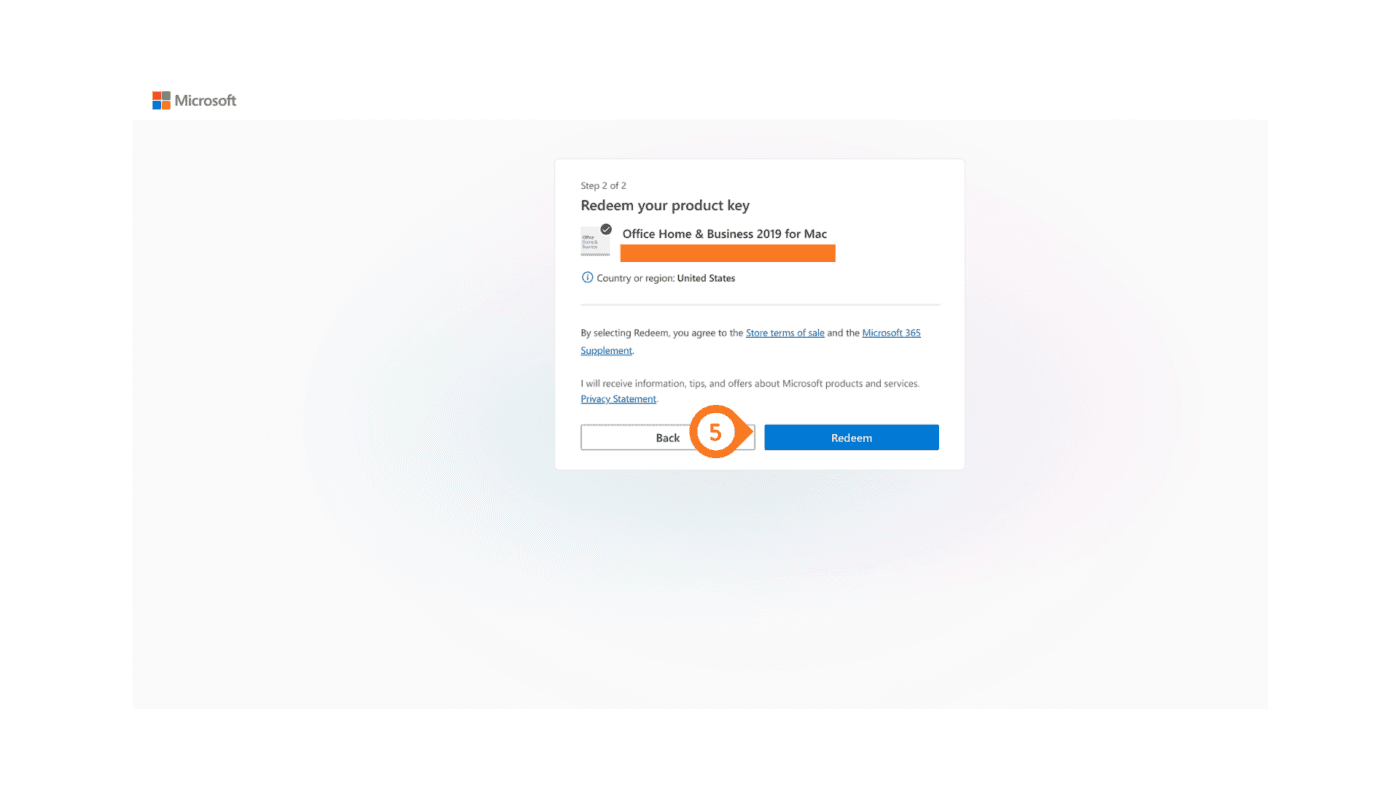
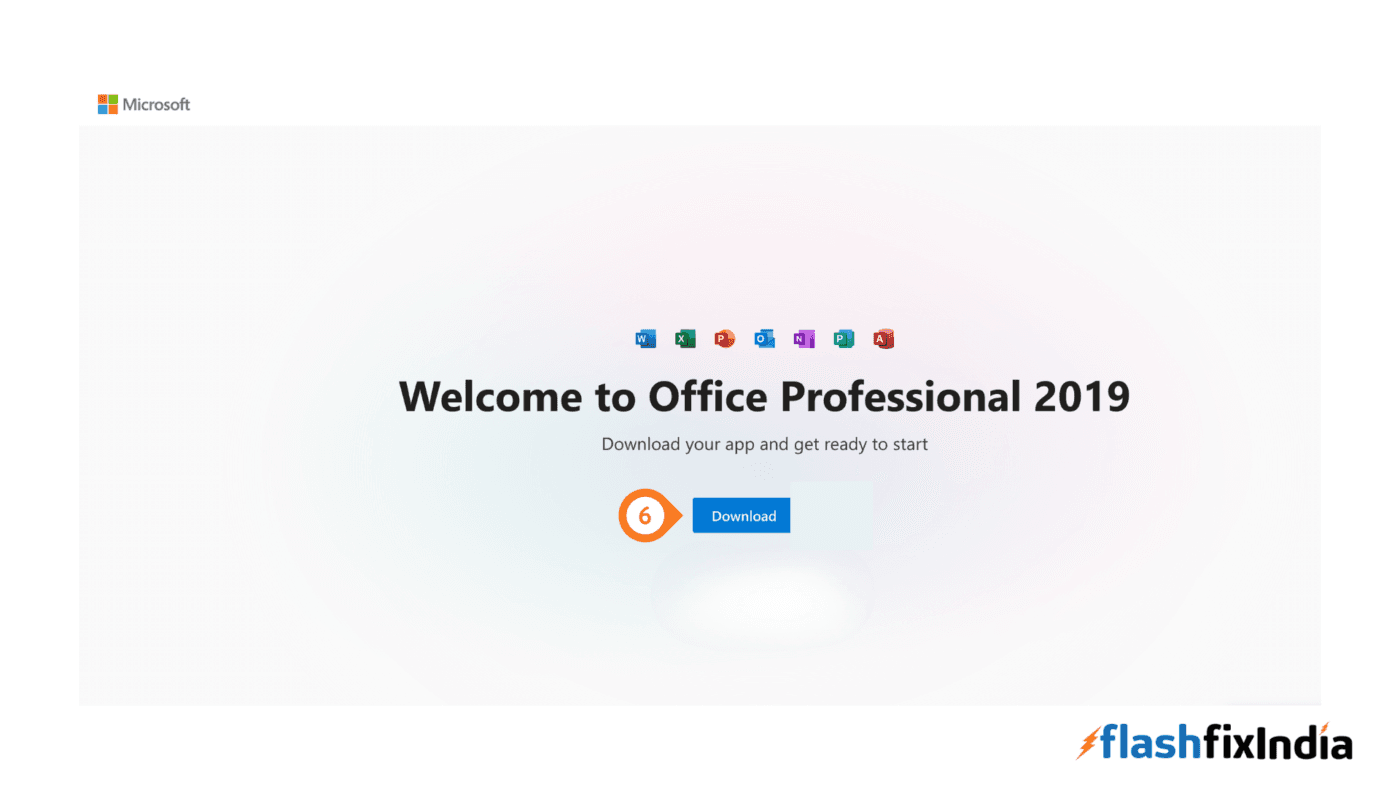
Step 4: Click Download to get MS Office for Mac.
Install MS Office for Mac
Now run the downloaded file to install MS Office for Mac and follow the on-screen instructions to complete the installation.
Congratulations on successfully installation.
Leave a Reply